
How to Migrate Apple Mail to Outlook without Data Loss?
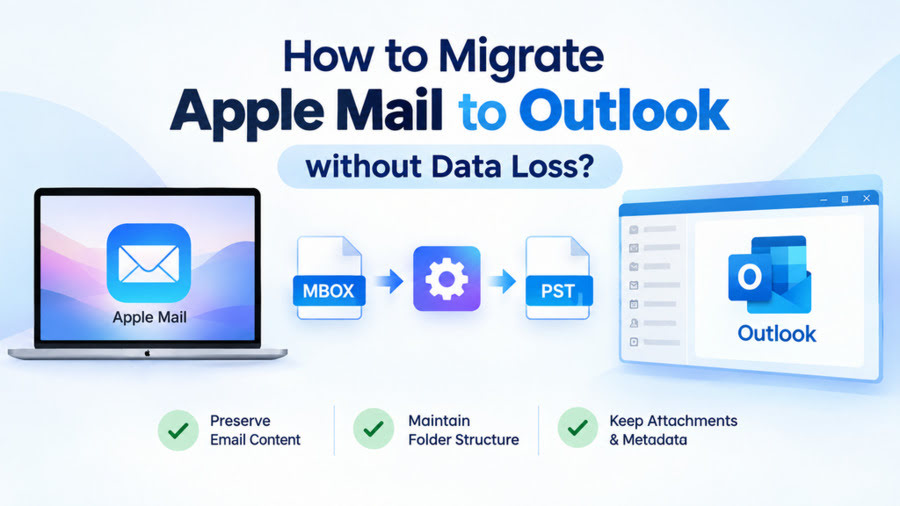
If you want to migrate emails from Apple Mail to Outlook, an effective way is to export them to MBOX file, convert the file to the Outlook-importable PST file format by using a specialized MBOX to PST converter, such as Stellar Converter for MBOX and then import this file into Outlook. There is also a workaround where you can just save the Apple Mail emails in EML files and move them to Outlook. In this article, we will explore both these ways in detail.
Methods to Migrate Apple Mail to Outlook without Data Loss
Let’s look at the methods explained below to migrate emails from Apple Mail to Outlook.
Method 1: Save Apple Mail Emails as EML Files and Move them to Outlook
Microsoft Outlook can open EML files. So, as a workaround, you can save the required emails from Apple Mail in EML files and drag and drop them into Outlook. Follow the step-by-step process below.
Part 1: Save Apple Mail Emails as EML Files
First, you need to save the required email messages from your Apple Mail account as EML files on your Mac. Here’s what to do:
- Launch Apple Mail (Mail) on your Mac/iMac.
- Click on a mailbox folder to show all the email messages.
- Select the required email messages.
- Click on File in the menu bar and select Save As.
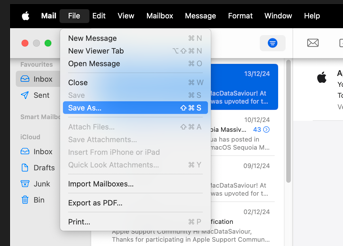
- The Save box will appear. Select the destination and Saving Format as Raw Message Source.
- Click on Save.

Part 2: Drag and Drop EML Files into Outlook
Now, move the EML files to a Windows PC using an external storage drive. Then drag and drop them into Outlook. Here’s what to do:
- Launch the Outlook desktop client.
- Click on Folder in the menu bar and click New Folder.
- Now, go to the location on your PC where you have stored Apple Mail emails as EML files.
- Select them, and drag and drop them into the new folder created in MS Outlook.
Limitations of Saving Apple Mail Emails as EML Files
Here are some limitations of the above method:
- It is a time-consuming and lengthy method. You need to save your emails as EML files, transfer them to Windows PC, and then drag them into Outlook.
- It is limited to just saving email messages.
- Emails lose mailbox hierarchy. Emails from different folders are saved as EML files at the selected location.
- Attachments may not appear with some emails
Method 2: Use an MBOX to PST Converter to Convert MBOX File to PST Format
You can use an MBOX to PST converter to convert the Apple Mail MBOX file to PST format. Then simply import the PST file into Outlook.
To convert the MBOX file, you can use the browser-based MBOX to PST converter by Stellar. It is an free online service that lets you accurately convert MBOX file of size 100MB or less to PST format for free. As it is a web-based service, you can use it to convert MBOX files on any Windows, Mac, or Linux device in 3 simple steps: Upload > Convert > Download. You can also upgrade to its Premium edition to convert 5 MBOX files of up to 5 GB in size.
You can also use Stellar Converter for MBOX – a powerful MBOX to PST converter tool to convert Apple Mail to Outlook PST on your Windows PC. This powerful tool lets you preview emails and other mailbox items like attachments, contacts, calendars, etc., after conversion. Moreover, this tool can convert MBOX file of other email clients like Google Takeout (Gmail), Mozilla Thunderbird, Opera Mail, PocoMail, etc., to PST file format with 100% data integrity and precision.
Let’s see how to convert an Apple Mail MBOX file to PST using Stellar Converter for MBOX.
Step 1: Export Apple Mail Emails to MBOX File
Here’s how you can export your Apple Mail mailbox items to MBOX file:
- Launch Apple Mail (Mail) on your Mac.
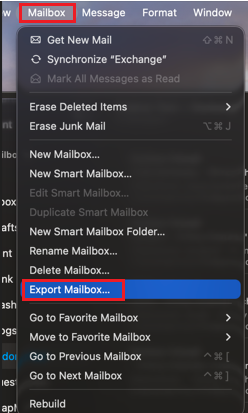
- Select all the mailbox folders that you want to migrate to Outlook. Click on Mailbox > Export Mailbox.
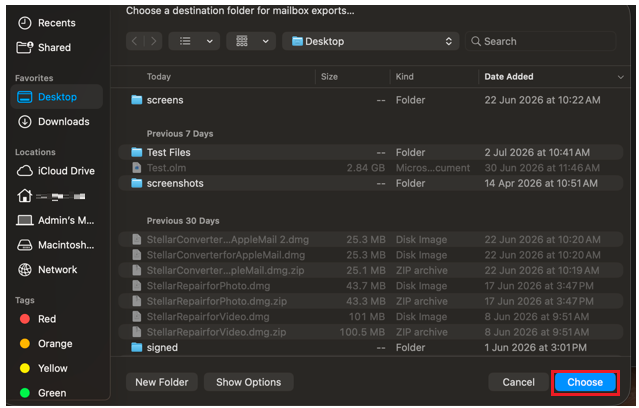
- Select a location to save the exported MBOX file.
- Click Choose to begin the export.
- The selected mailbox items will be saved in the MBOX file at the selected location on your Mac/connected external drive.
Step 2: Use Stellar Converter for MBOX to convert Apple Mail to Outlook
Now follow the below steps to convert the Apple Mail MBOX file to PST:
- Download and install Stellar Converter for MBOX on your PC. Launch it.
- Click on Select Mail Client.
- Select Apple Mail from the Email Client dropdown menu.
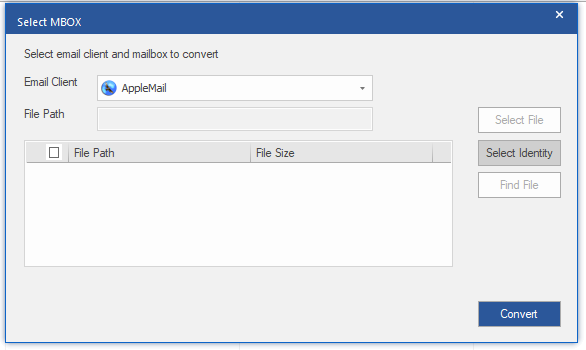
- Click on Select Identity to choose the Apple Mail MBOX file.
- Locate and select the MBOX file you want to convert.
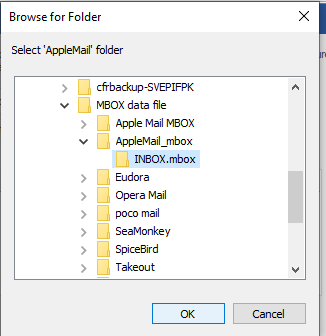
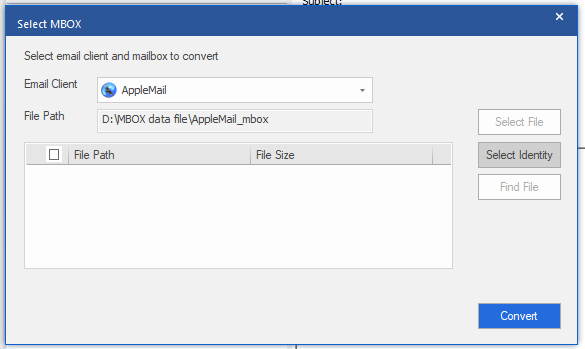
- Then, click Convert.
- Wait for the tool to finish scanning the selected Apple Mail MBOX file.
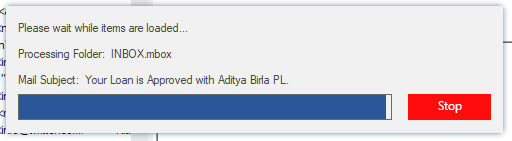
- Once the process is complete, it will display all the MBOX file items in a preview window. You can click on any item to see its enhanced preview.
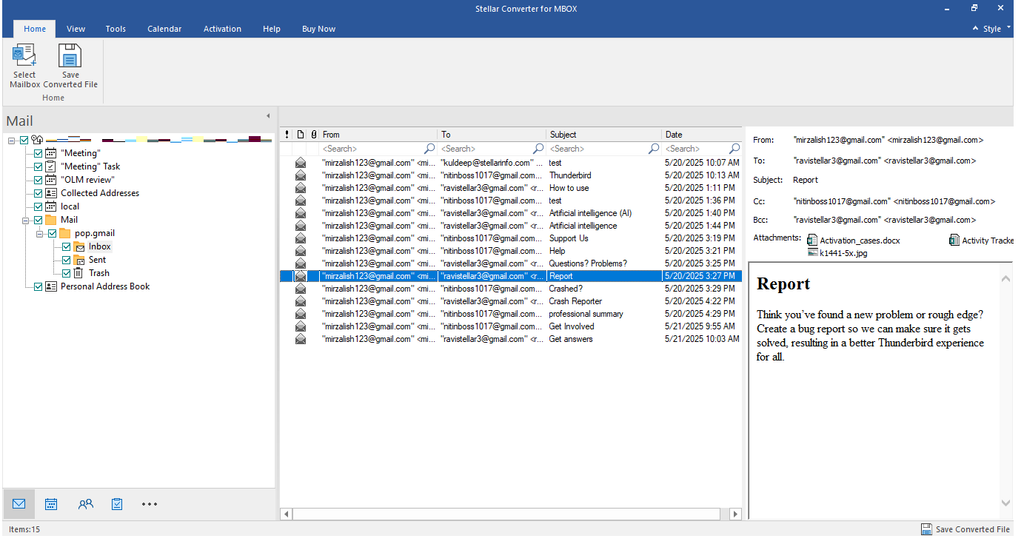
- Select the items you want to save to PST and click on Save Converted File.
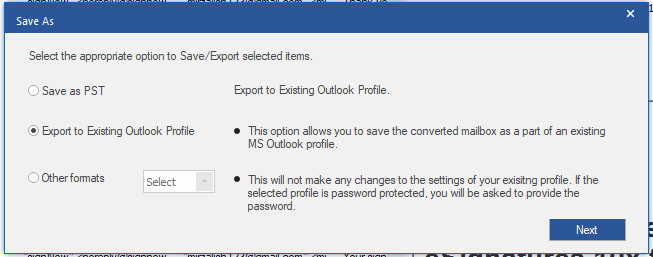
- In the Save As window, select the Export to Existing Outlook Profile option.
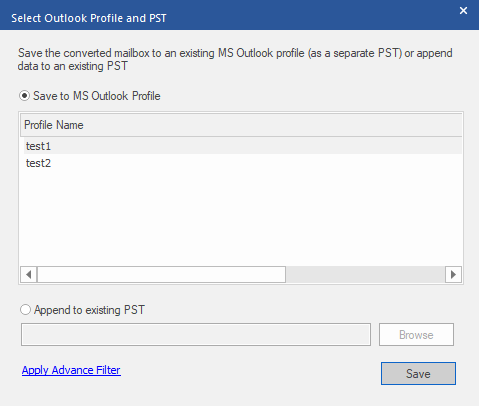
- The Select Outlook Profile and PST window will appear on the screen. Here, you can either export the mailbox data to an Outlook profile or append it to an existing PST file. let’s look at the steps for both the options:
Option 1: Save Apple Mail mailbox data to MS Outlook Profile
- Choose the Save to MS Outlook Profile option
- Select the Profile from the given list and click Save.
Option 2: Append Apple Mail mailbox data to an existing PST file
If you want to add MBOX file data to an existing PST file, you can do so by selecting the Append to existing PST option.
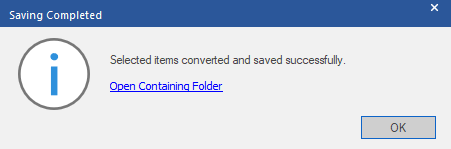
- After selecting the desired option, the software will import Apple Mail MBOX file data into the selected Outlook profile/existing PST file. Once completed, the Conversion Completed dialog box will appear.
- Click OK to complete the process.
Conclusion
In this article, we’ve explored a manual workaround to migrate emails from Apple Mail to Outlook. While it is free to use, it is time-consuming and lengthy. You can instead export emails from Mac Mail as an MBOX file and then convert the mailbox file to Outlook PST format using Stellar Converter for MBOX. This powerful MBOX to PST converter tool can help you convert the MBOX file to PST format without altering the mailbox structure.
You can also convert Apple Mail MBOX file to Outlook PST using the free online MBOX to PST converter by Stellar. It is a web-based service that that helps you quickly convert the MBOX file (up to 100 MB) to PST format for free. After this, you can import the PST file into Outlook via the built-in Import/Export wizard.
